🛡️ Sandboxed by default
Generated code is treated as untrusted. Every app runs in its own bubblewrap sandbox with no network and no access to your files unless you allow it. The OS, not the app, draws each window's frame.
A Linux desktop · early preview
Type a name like pomodoro.exe. Claude builds the app, MutantShell keeps it
as real code, and the ✨ on every window changes it whenever you ask. Your data survives every version.
Live ISO for x86-64 · 915 MB · boots on UEFI and BIOS
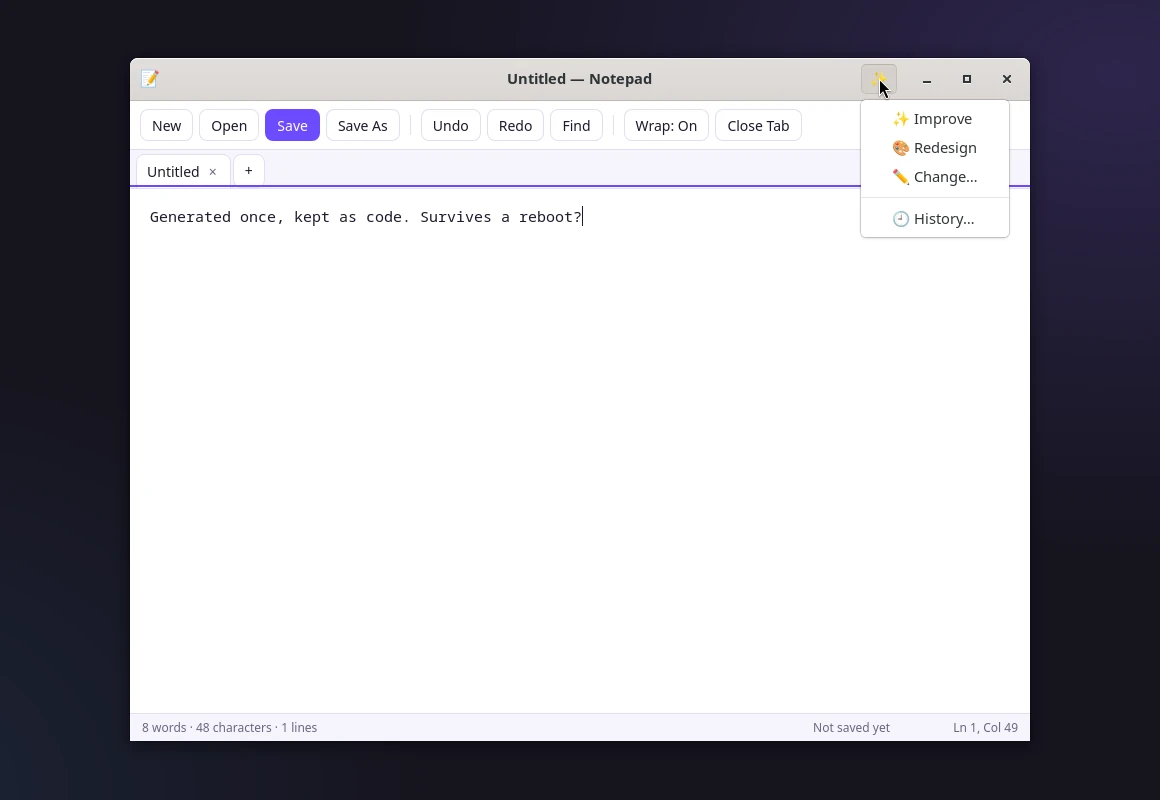
Open Apps and type what you want. If it doesn't exist yet, Claude writes it the first time and it opens instantly from then on.
Every app is a small HTML and JavaScript package with its own git history. Nothing is regenerated behind your back, and its saved data stays in its own folder.
Click ✨ in any window: Improve, Redesign, or describe a Change. Each version must start without errors and pass a headless test before you try it and decide to keep it. History rolls back to any earlier one.
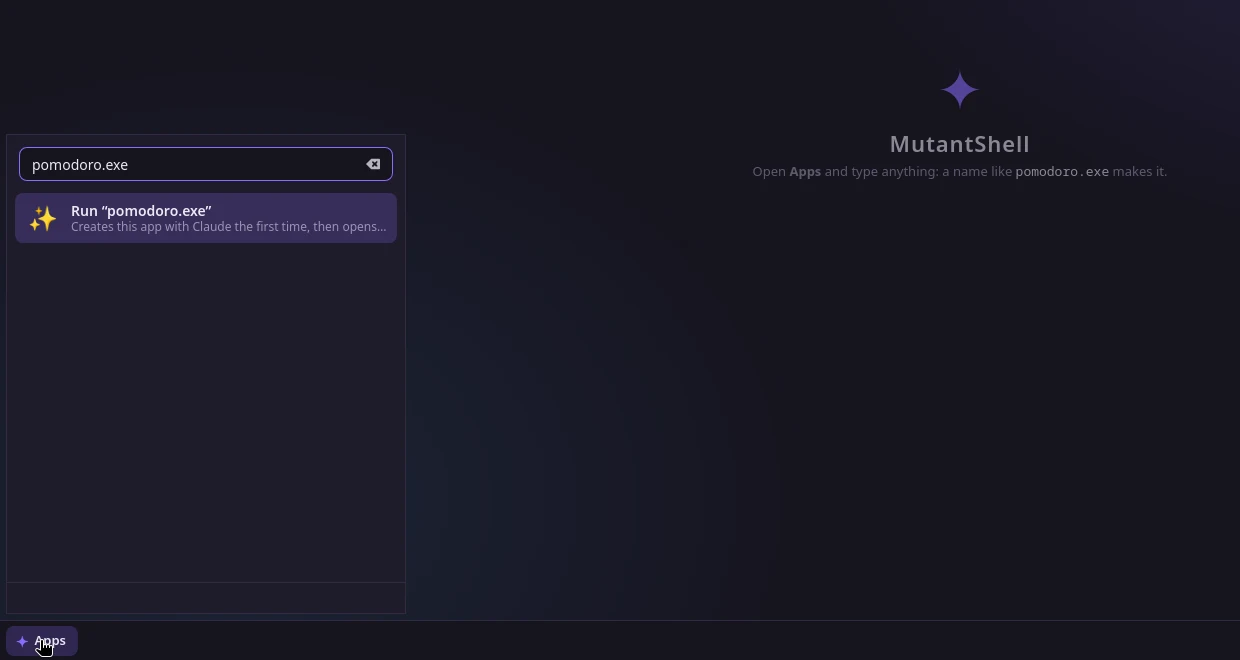
The launcher searches your apps and, when nothing matches, offers to make one. A name is
enough: notepad.exe, pomodoro.exe, budget tracker. It stays
installed, and opens instantly from then on.
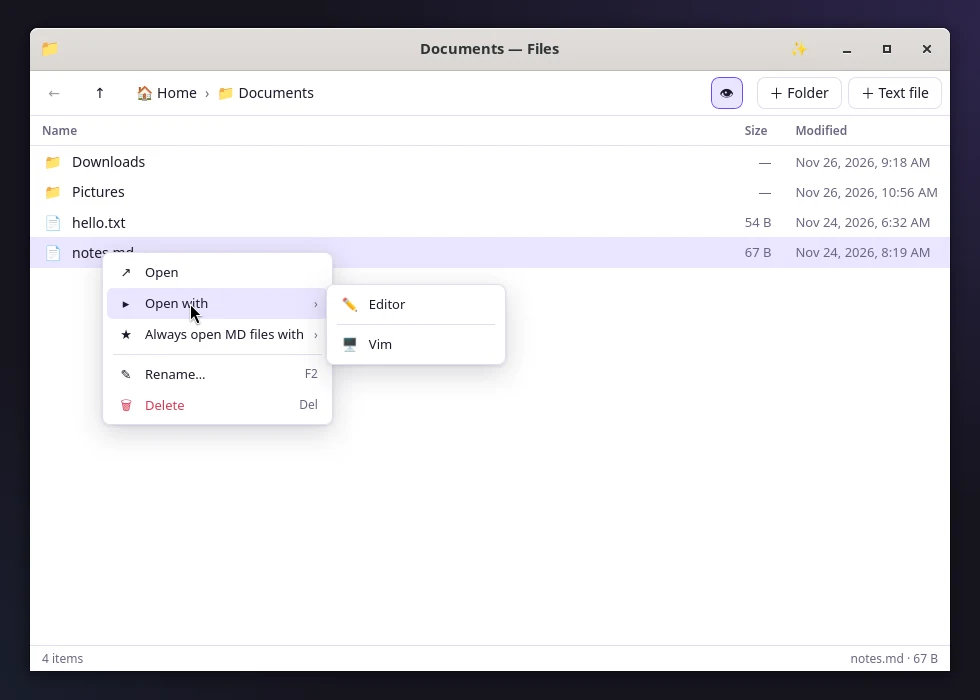
Files, Editor, Settings and Media Viewer ship as stock apps, alongside Firefox ESR and a terminal. You can mutate the stock apps too, and "reset to stock" is always one click away.
Pick which app opens each kind of file, including the computer's own programs.
Generated code is treated as untrusted. Every app runs in its own bubblewrap sandbox with no network and no access to your files unless you allow it. The OS, not the app, draws each window's frame.
Apps are generated or changed only from real actions in the OS's own controls. An app can't ask Claude to rewrite itself or anything else.
The panel, launcher and desktop are mutable apps too. If a change breaks them, the shell falls back to the stock shell and offers to roll the change back.
Wi-Fi, sound, battery and brightness in the tray; notifications; lock screen; display settings; screenshots; software updates; a .deb installer; several user accounts.
Apps are made with Claude, through your own Claude Code sign-in or an Anthropic API key. Choose the model and effort in Settings, and set a usage limit at which generation pauses.
Debian 13 with the labwc Wayland compositor. Install it to disk from the live session, and apt keeps it up to date.
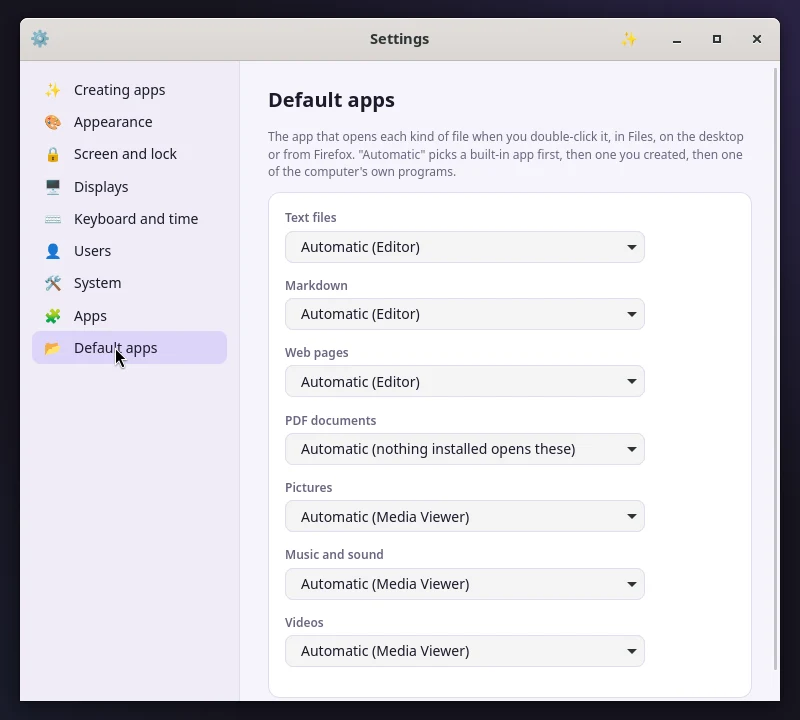
One place for the model and budget, appearance, screen lock, displays, keyboard and time zone, users, updates and default apps. Settings is a stock app, so you can ✨ it too.
Boot the live ISO from a USB stick or a virtual machine. Nothing is installed until you choose Install to Disk.
SHA-256 6a6b0236783b6c66fec84e8e751a4c1f9e863552a2ab4282b2617b3f4d28029d
· SHA256SUMS
Use any USB image writer, or on Linux:
sudo dd if=mutantshell-2026-11-27.iso of=/dev/sdX bs=4M status=progress conv=fsyncReplace /dev/sdX with the stick. This erases it.
mutant, password mutantThis is an early preview made by one person. Expect rough edges, and don't keep anything important only on it yet.